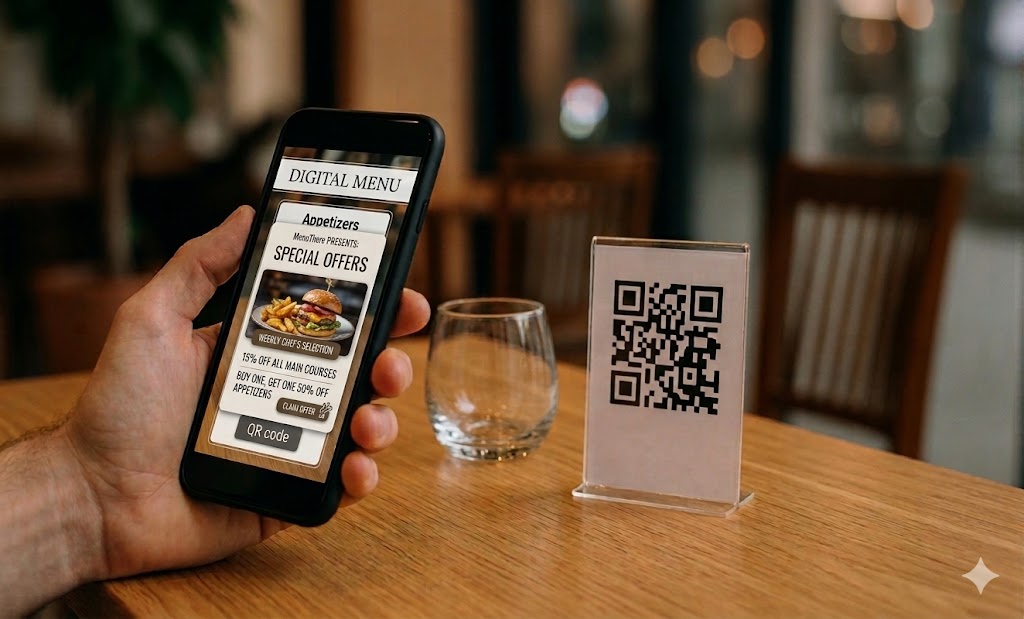
What is a QR Code Menu?
A QR code menu is a scannable code that opens your restaurant's digital menu instantly in a customer's browser — no app download needed.
With Menuthere, that menu isn't just a static PDF. It's an interactive, mobile-first experience where guests can:
Browse your full menu with dish photos
Filter by dietary preferences or allergens
Customize their order (add-ons, spice level)
Place their order and pay — all from their phone
Or download the Menuthere app for a dedicated menu browsing experience`
The QR code can be placed on tables, countertops, packaging, receipts, or even your storefront window.
Scanning on Android
Most Android devices running Android 8 or above have built-in QR scanning — no third-party app required.
Option 1: Native Camera App (Easiest)
Make sure you're connected to WiFi or mobile data.
Open your Camera app.
Point it at the QR code — center it in the frame.
A banner notification will appear at the top. Tap it.
Your browser opens directly to the restaurant's Menuthere menu.
Option 2: Google Lens
Open Google Assistant or the Google app.
Tap the Lens icon (next to the microphone).
Point your camera at the QR code.
Tap the notification that appears to open the menu.
Option 3: Browser-Based Scanner (No App, No Camera Permission Prompts)
Open your browser and go to any online QR scanner (e.g., webqr.com).
Allow camera access when prompted.
Point at the QR code — the menu link appears instantly.
Tap the link to open your Menuthere menu.
BONUS:
Download the Menuthere app (iOS & Android) to browse menus from any Menuthere-powered restaurant — all in one place.
Scanning on iPhone
iPhones running iOS 11 or higher (iPhone 5s and newer) have native QR scanning built in.
Option 1: Native Camera App (Easiest)
Open your Camera app from the Home Screen or Lock Screen.
Point it at the QR code — no need to press anything.
A notification banner appears. Tap it.
Your Safari browser opens the restaurant's Menuthere menu.
Option 2: Control Center QR Reader
If your camera isn't scanning for some reason:
Go to Settings → Control Center → Customize Controls.
Add QR Code Reader by tapping the green + icon.
Swipe down from the top-right to open Control Center.
Tap the QR Code Reader icon and point at the code.
The menu opens automatically.
Recommended Third-Party QR Scanner Apps
If a customer is on an older device, any of these free apps work well:
App | Platform | Notes |
|---|
QR TIGER | iOS & Android | Clean UI, ad-free, scan history |
QR Code Reader (Scan) | iOS & Android | Auto-scans without pressing buttons |
Neoreader | iOS & Android | Works at any angle |
ME-QR | iOS & Android | Saves scan history |
Why Menuthere QR Menus Work Better for Your Restaurant
Most QR code solutions stop at showing a menu. Menuthere goes further:
For your guests:
Instant access — scans in under 2 seconds
Always shows your current menu (no stale printed versions)
Order and pay from the table, reducing wait times
Works on any smartphone, no app download required
For your restaurant:
Update items, prices, and availability in real time
Reduce menu printing costs entirely
Collect order data and understand what's selling
Works for dine-in, takeaway, and delivery storefronts
Setting Up QR Codes on Menuthere
If you're a restaurant owner and want to get your QR menu live:
Sign up at menuthere.com — free to start
Add your menu — categories, dishes, photos, prices, modifiers
Generate your QR code — download and print it in minutes
Place it — tables, counters, receipts, social media, your storefront
Your customers can start ordering the same day.
FAQs
Do customers need to download an app? Not necessarily — Menuthere menus open directly in the browser with no app required. But if you prefer a dedicated experience, you can also download the Menuthere app on iOS and Android to browse menus directly.
What if a customer's phone can't scan QR codes? They can use any free QR scanner app (see the list above) or type your menu URL directly.
Can customers order and pay through the QR menu? Yes — Menuthere supports full digital ordering and payment collection through the menu, not just menu browsing.
Does the QR code change if I update my menu? No. The QR code stays the same. Only the menu content updates — instantly, without reprinting anything.
Can I use QR codes for delivery too? Yes. Menuthere lets you build a delivery storefront that works alongside your dine-in QR menu.
Ready to replace your printed menus? Get started with Menuthere →